


Quick Answer
Using the Dayforce Time Clock correctly is essential to ensure your hours worked, meal and rest breaks, and any work transfers are recorded accurately and in compliance with company policy and labor laws. Each time clock button serves a specific purpose, and selecting the correct option at the right time helps prevent payroll delays and compliance issues.
Time Clock Buttons and When to Use Them
Use the table below as a quick reference when clocking in, taking breaks, or transferring locations:
|
Button Name |
What It Does |
When To Use It |
|
Start Shift |
Clocks you in to begin work |
At the start of your scheduled shift |
|
End Shift |
Clocks you out |
After completing all work |
|
Start Meal |
Begins unpaid 30-minute meal |
When taking a meal break |
|
End Meal |
Ends unpaid meal break |
Immediately after your meal break ends |
|
Start Break |
Begins paid 10-minute break |
When taking a short duty-free break |
|
End Break |
Ends paid break |
When the break ends and you resume work |
|
Work Transfer |
Records store/location change |
When transferring between locations |
|
Show Past Clock Entries |
Shows recent punches |
To review for accuracy before clocking out |
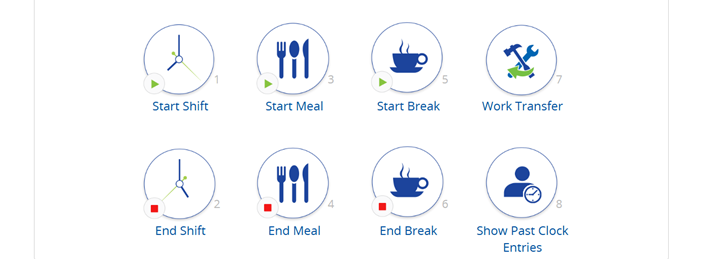
Dayforce Time Clock Instructions
Follow these steps each time you use the time clock:
-
Access the Time Clock
-
Use the desktop shortcut on the designated work computer or time clock terminal at your work location.
-
-
Select the Correct Clock Action
-
Choose the appropriate button (for example, Start Shift, Start Meal, or End Shift).
-
-
Enter Your Badge Number
-
Input your 6-digit badge number (your Dayforce Employee Number).
-
-
Enter Your PIN
-
Enter your PIN, which is your birth year.
-
-
Confirm the Punch
-
A confirmation screen will appear to show your punch was accepted.
-
Work Transfer Instructions (Multi-Location Workdays)
If you work at more than one location during the same shift:
-
Do not clock out when leaving the first location.
-
Use Work Transfer when you arrive at the new location.
-
This ensures your time is recorded correctly and labor is allocated properly.
-
Work Transfer is only available if you have an active assignment for the secondary location.
Important Timekeeping Reminders
-
Always clock in before starting work and clock out after all work is completed.
-
Never work off the clock, including during unpaid meal breaks.
-
Review your punches regularly to ensure accuracy.
-
Missed or incorrect punches should be reported to your supervisor immediately.

